How to Convert JPG to PNG
A complete guide to converting JPEG images to PNG format — free, fast, and without losing quality.
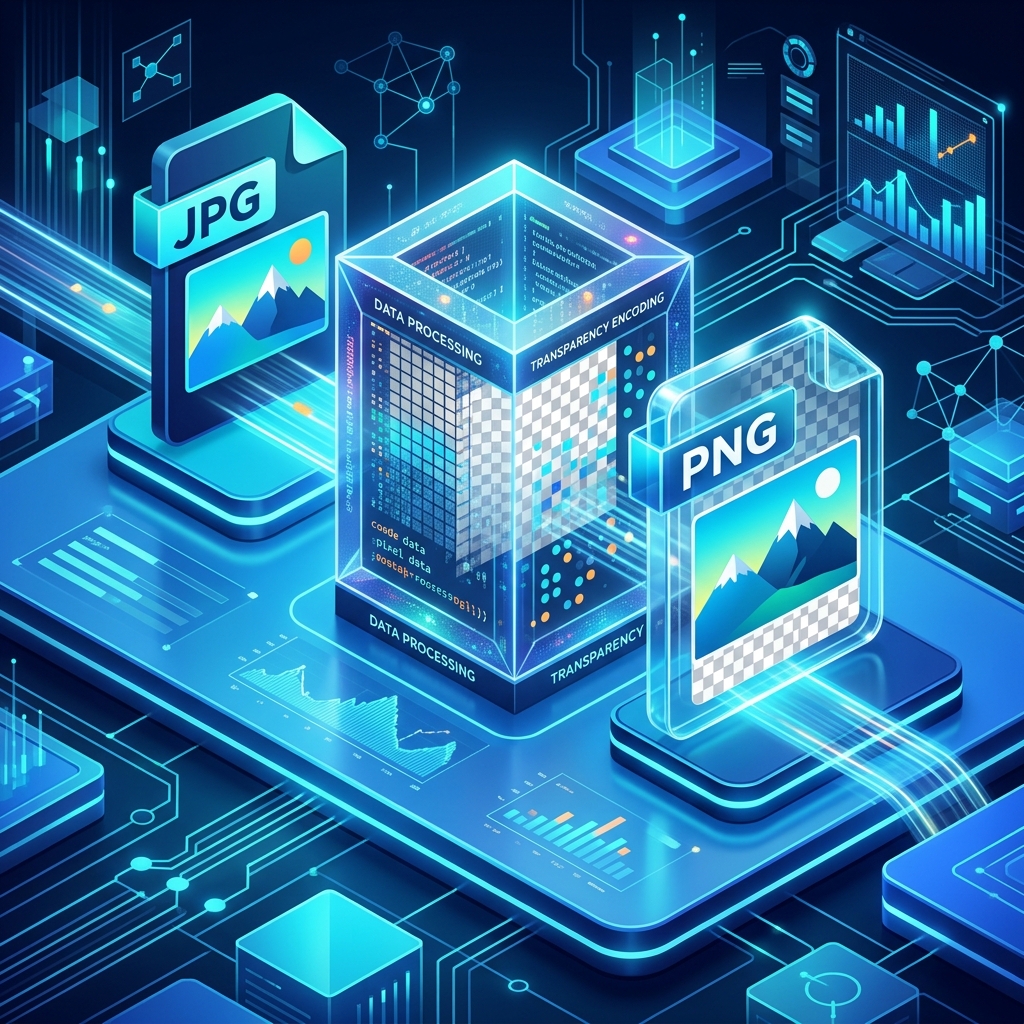
Why Convert JPG to PNG?
JPEG (JPG) and PNG are two of the most widely used image formats on the web, but they serve very different purposes. Understanding when to use each format helps you make better decisions about image quality, file size, and compatibility.
JPEG uses lossy compression — it reduces file size by permanently discarding some image data. This is great for photographs where small quality losses are invisible, but it creates problems when you need pixel-perfect accuracy, transparency, or plan to edit the image multiple times.
PNG uses lossless compression — no data is lost during compression. This makes PNG ideal for graphics with sharp edges (logos, icons, text overlays), images that require a transparent background, and any situation where you need to preserve every pixel exactly as it is.
Common reasons to convert JPG to PNG include:
- Adding transparency — PNG supports alpha channels; JPG does not
- Preserving quality during editing — each time you save a JPG, quality degrades slightly
- Logos and graphics — PNG handles flat colors and sharp edges better than JPG
- Screenshots — text and UI elements look cleaner in PNG format
- Web development — many frameworks and CMS platforms prefer PNG for certain assets
Step-by-Step Guide
Converting a JPG image to PNG is straightforward using our free online converter. Here's how to do it in under 30 seconds:
Step 1 — Open the Converter
Navigate to our JPG to PNG Converter. The tool loads instantly in your browser — no installation or sign-up required.
Step 2 — Upload Your Image
Click the "Browse Files" button or drag and drop your JPG image directly onto the upload area. The tool accepts files up to 10 MB. You'll see a preview of your image immediately after uploading.
Step 3 — Convert and Download
The conversion happens automatically. Within moments, you'll see the converted PNG preview along with both the original and converted file sizes. Click "Download PNG" to save the file to your device.
Tips for Best Results
While the conversion process is simple, here are a few tips to get the most out of it:
- Start with the highest quality JPG — converting a heavily compressed JPG to PNG won't restore lost quality, but it will prevent further degradation during future edits.
- Check file size — PNG files are typically larger than JPGs for photographs. If file size is a concern, consider using our Image Compressor afterward.
- Resize if needed — if the image is larger than required, use our Resize Image tool to reduce dimensions before or after conversion.
- Consider WebP — for web use, converting to WebP may give you even better compression with transparency support.
JPG vs PNG — Quick Comparison
| Feature | JPG | PNG |
|---|---|---|
| Compression | Lossy | Lossless |
| Transparency | ❌ No | ✅ Yes (alpha) |
| Best for | Photos | Graphics, logos, text |
| File size (photo) | Smaller | Larger |
| Repeated editing | Quality loss | No loss |
Frequently asked questions
Does converting JPG to PNG improve quality?
Converting to PNG preserves the current quality but cannot recover data already lost during JPG compression. It does prevent further quality degradation in future saves and edits.
Will the file size increase?
Usually yes. PNG uses lossless compression, so files are generally larger than the equivalent JPG — especially for photographs. For graphics and screenshots, the difference may be minimal.
Is the conversion private?
Yes, 100%. Our tool processes your image entirely in your browser using the Canvas API. Your file is never uploaded to any server.
Can I convert multiple images at once?
Currently our tool converts one image at a time. After downloading, click "Convert Another" to process the next file. Each conversion takes only a few seconds.
Use Our Free JPG to PNG Converter
Ready to convert your image? Our free online tool does it in seconds — no sign-up, no upload, no watermarks.
🔄 Convert JPG to PNG — Free