How to Convert PNG to JPG
Reduce file size by converting PNG images to JPG — fast, free, and private.
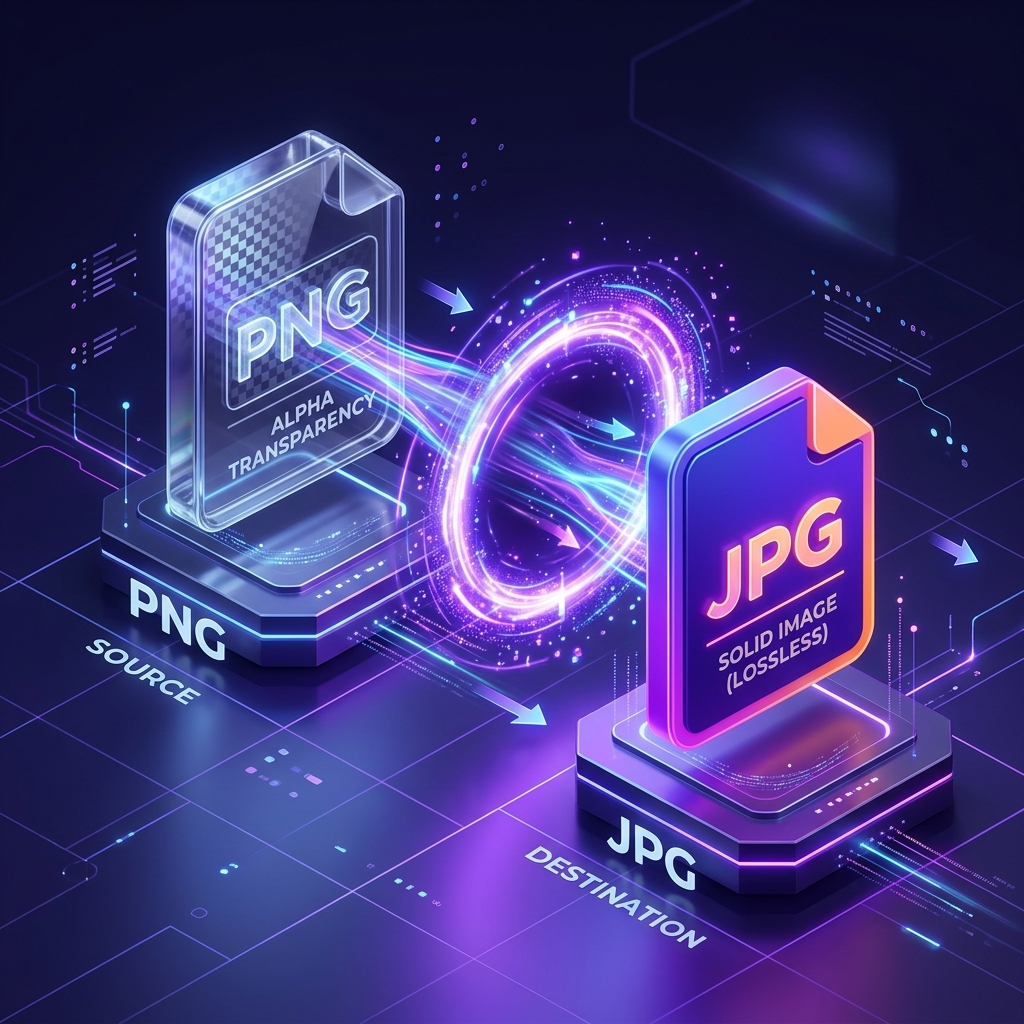
Why Convert PNG to JPG?
PNG files are excellent for preserving quality and supporting transparency, but they come at a cost: file size. A PNG photograph can easily be 2–5x larger than the same image saved as JPG. When you don't need transparency or pixel-perfect lossless quality, converting to JPG significantly reduces file size.
| Feature | PNG (Original) | JPG (Converted) |
|---|---|---|
| Compression | Lossless (No quality loss) | Lossy (Optimized) |
| Transparency | ✅ Supported | ❌ Not Supported (White background) |
| File Size | Large (Heavier) | Small (60-80% reduction) |
| Best Use Case | Logos, Icons, Screenshots | Photos, Web images, Email |
Here are the most common reasons to convert PNG to JPG:
- Reduce file size — JPG photos are typically 60–80% smaller than PNG equivalents
- Email attachments — smaller files send faster and avoid mailbox size limits
- Web performance — lighter images mean faster page loads and better SEO
- Platform requirements — some systems or forms only accept JPG/JPEG files
- Storage savings — when archiving many photos, JPG saves significant disk space
What You Should Know Before Converting
Converting PNG to JPG involves some tradeoffs. Make sure you understand them before proceeding:
- Transparency is lost — JPG doesn't support alpha channels. Any transparent areas in your PNG will be filled with a solid color (usually white). If you need transparency, keep the PNG or convert to WebP instead.
- Lossy compression — JPG uses lossy compression, meaning some image detail is permanently discarded. For photographs, this is rarely noticeable. For text, logos, or graphics with sharp edges, JPG artifacts may be visible.
- No going back — once you've discarded data through lossy compression, you can't recover it by converting back to PNG. Always keep your original PNG file as a backup.
Step-by-Step Guide
Step 1 — Open the Converter
Navigate to our PNG to JPG Converter. The tool opens instantly in your browser — no software to download, no account to create.
Step 2 — Upload Your PNG
Click "Browse Files" or drag your PNG image onto the upload area. The tool accepts PNG files up to 10 MB. A preview of your image and the original file size will be displayed immediately.
Step 3 — Download the JPG
The conversion starts automatically. In seconds, you'll see the converted JPG preview alongside both the original and converted file sizes. Click "Download JPG" to save the file. You'll typically see a 60–80% size reduction for photographs.
Tips for Best Results
- Keep the original — always save your PNG backup before converting, in case you need the lossless version later.
- Check for transparency — if your PNG has transparent areas, they'll become white in the JPG. Preview the result to make sure it looks acceptable.
- Resize if oversized — if your image is larger than needed, resize it before or after conversion for even more size savings.
- Compress further — for maximum reduction, convert to JPG first, then use our Image Compressor with a custom quality setting.
- Consider WebP — for modern web use, PNG to WebP gives even better compression while supporting transparency.
Frequently asked questions
How much smaller will the JPG be?
For photographs, expect 60–80% smaller files. For graphics and screenshots, savings vary — simple images with flat colors may see less reduction because PNG already compresses them efficiently.
What happens to transparent backgrounds?
Transparent areas are replaced with a white background. JPG does not support transparency. If you need transparency, keep the PNG or use our PNG to WebP converter.
Is the quality the same?
JPG uses lossy compression, so there is a small quality reduction — but at the default quality setting, the difference is virtually invisible for photographs. Graphics with text or sharp edges may show slight artifacts along edges.
Is this tool safe to use?
Yes. Your image is processed entirely in your browser using JavaScript and the Canvas API. No file is uploaded to any server. Your data stays on your device.
Use Our Free PNG to JPG Converter
Convert your PNG images to lightweight JPG in seconds — no sign-up, no upload, no watermarks.
📷 Convert PNG to JPG — Free