How to Convert PDF to JPG Images: Full Resolution Guide
Transform your PDF pages into high-quality JPEG or PNG images instantly — 100% browser-based, private, and free.
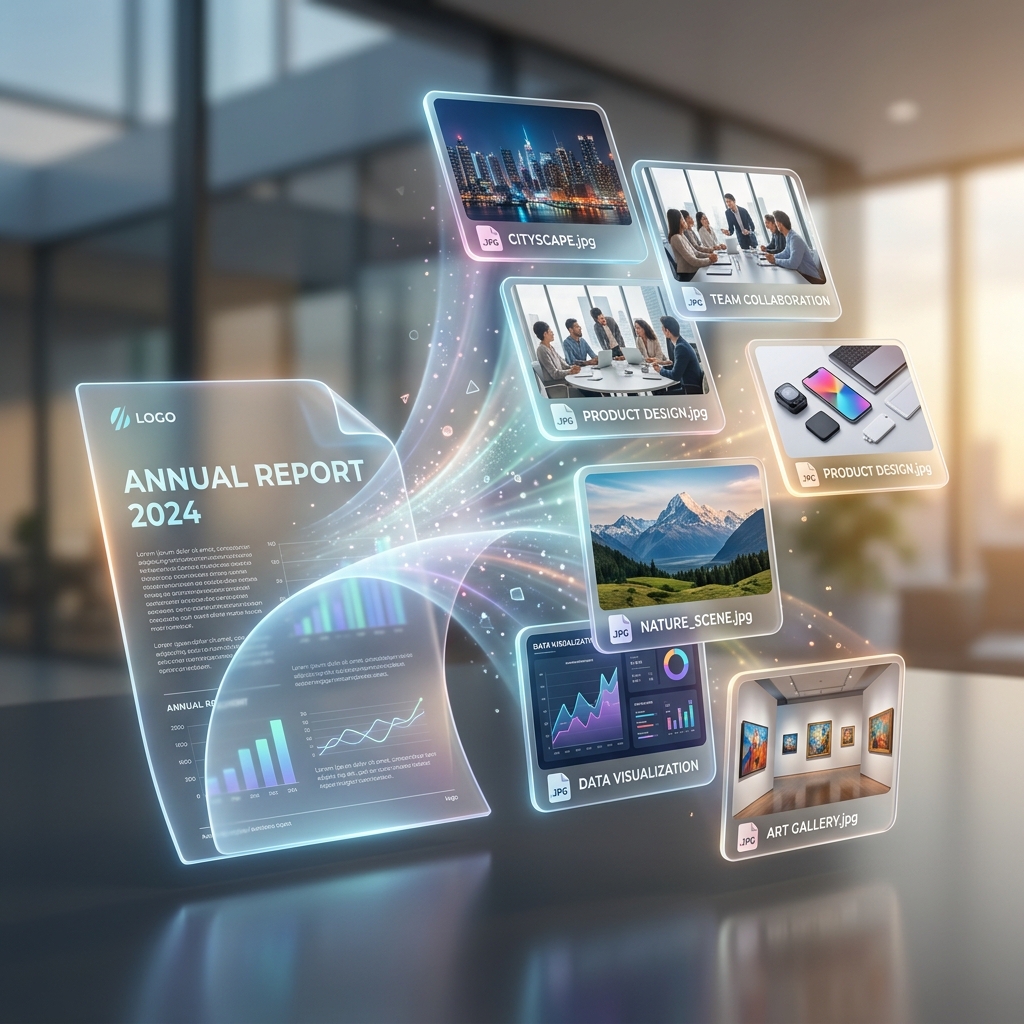
Why Convert PDF to JPG?
PDFs are great for documents, but they aren't always easy to share as visuals. If you need to post a page of a document on social media, include it in a presentation, or send a quick snapshot of a contract via mobile, converting that page to a JPG is the best solution.
Images are universally compatible and don't require a PDF reader to view. With our tool, you can get high-resolution captures of every page in seconds.
Privacy First: Conversions without the Cloud
Unlike most online converters that require you to upload your document to their server, FreeTools uses offline-first technology. Your PDF is rendered directly in your computer's memory using your browser's power. No data ever leaves your device.
This is crucial for privacy. Whether it's a personal ID scan, a financial report, or a private letter, you can convert it to an image with the mathematical certainty that no third party can ever view your file.
Step-by-Step Tutorial: PDF to JPG
Step 1 — Load Your PDF
Open our PDF to Image Tool and drag your file into the window. The tool will instantly prepare the pages for rendering.
Step 2 — Visual Preview
Wait a second while the browser generates thumbnails for each page. You can see exactly what each image will look like before you commit to downloading.
Step 3 — Individual or Bulk Download
You have two choices: click the download icon on a specific page to get just that image, or use the "Download All" button to get every page packaged into a convenient ZIP file.
Key Benefits of Browser-Based Conversion
- High Resolution: Crisp, clear images suitable for professional use.
- Instant Speed: No upload wait times — conversions happen as fast as your computer can process.
- Safe for Sensitive Data: Your files never touch a server.
- Mobile Friendly: Works on smartphones and tablets without needing extra apps.
Frequently asked questions
Can I choose the image format?
Yes! You can choose between JPG (best for general use and photos) or PNG (best for documents with lots of text or icons needing perfectly sharp edges).
Will I lose the text quality?
We render pages at a high density (300 DPI) to ensure that even small text remains perfectly readable when converted to an image.
Is there a limit on how many pages a PDF can have?
No hard limit, but remember that more pages take up more RAM. For PDFs over 100 pages, we recommend processing them on a device with at least 8GB of memory.
Turn your documents into shareable visuals now
Fast, free, and completely secure. The better way to manage your PDF files.